The Accessibility Tree has been a fundamental part of modern web browsers for years. It powers screen readers, voice control software, and other assistive technologies by providing a semantic representation of a webpage. Despite its importance, it remains one of the least understood concepts among developers, designers, and SEO professionals.
Recently, the Accessibility Tree has gained renewed attention because of advances in AI-powered browsers and Google’s Lighthouse Agentic Browsing audits. As AI agents begin interacting with websites instead of simply reading them, understanding how browsers expose webpage semantics has become more relevant than ever.
This article explains what the Accessibility Tree is, how browsers build it, and what information it contains. A follow-up article will cover its role in AI agents and technical SEO.
Understanding the Accessibility Tree
What Is the Accessibility Tree
When a browser loads a webpage, it creates multiple internal representations. One is the Accessibility Tree, a simplified semantic view of the page for assistive technologies.
Unlike the HTML source code or the visual layout seen by users, the Accessibility Tree focuses on meaning rather than appearance. It identifies elements such as headings, buttons, links, forms, navigation menus, and images, along with their accessible names, roles, states, and relationships. This allows assistive technologies to understand what each element is and how users can interact with it, without relying on visual presentation.
The Accessibility Tree connects webpages with assistive technologies such as screen readers and voice control software. Browsers expose it through operating system accessibility APIs.
Browsers generate the tree from HTML, native semantics, ARIA, and computed state. It updates when JavaScript or user interaction changes the interface.
Why Browsers Create an Accessibility Tree
Assistive technologies need more than raw HTML. The browser interprets the document and exposes the semantic information they need through the Accessibility Tree.
For example, consider the following HTML
<header>
<nav>
<ul>
<li><a href=”/services”>Services</a></li>
<li><a href=”/blog”>Blog</a></li>
<li><a href=”/contact”>Contact</a></li>
</ul>
</nav>
<button>Schedule a Call</button>
</header>
Instead of exposing the HTML itself, the browser generates an Accessibility Tree that looks conceptually like this
Document
│
└── Header
│
├── Navigation
│ │
│ ├── Link “Services”
│ ├── Link “Blog”
│ └── Link “Contact”
│
└── Button “Schedule a Call”
Notice how the browser has transformed HTML elements into accessible objects with meaningful roles. A <nav> becomes Navigation, an <a> becomes a Link, and a <button> becomes a Button with an accessible name. This semantic representation allows assistive technologies to understand the purpose of each element instead of simply reading HTML tags.
Here is a graphical representation HTML code Vs DOM Vs Accessibility Tree
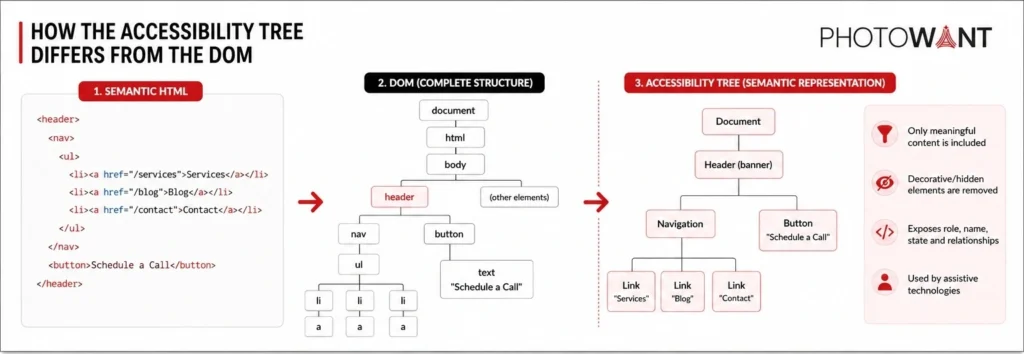
How the Accessibility Tree Differs from the DOM
The Document Object Model (DOM) and Accessibility Tree are different representations of the same webpage. They serve different purposes.
The DOM represents the complete page structure, including elements, text nodes, and dynamic content. The Accessibility Tree is a filtered semantic representation that exposes information needed by assistive technologies.
Layout-only <div> elements may remain in the DOM but be omitted from the Accessibility Tree. Meaningful elements such as <button>, <nav>, <main>, and labelled form controls are exposed with accessible properties.
How Browsers Generate the Accessibility Tree
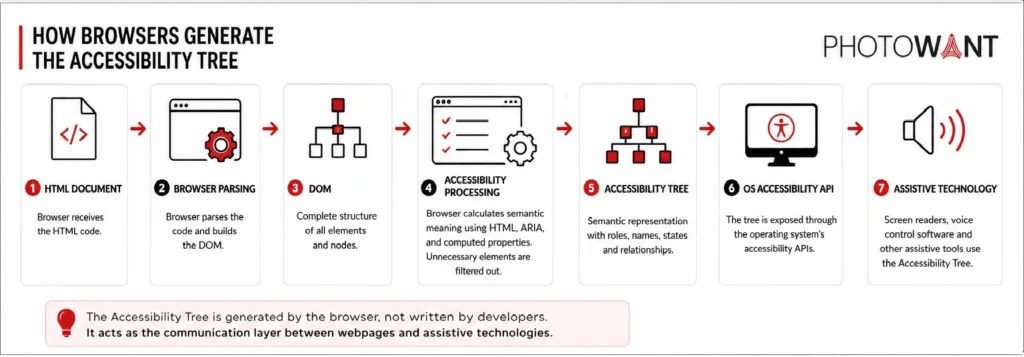
Developers do not create the Accessibility Tree manually. The browser analyzes HTML, native semantics, and ARIA, calculates accessible properties, and exposes the result through accessibility APIs.
The browser determines roles, accessible names, states, and relationships, while excluding decorative or hidden content. The result is a semantic representation, not a DOM copy.
The tree is dynamic. When content or interactive states change, such as an expanded menu or selected checkbox, the browser updates it.
Understanding Accessibility Tree Properties
Understanding Accessible Objects
The Accessibility Tree contains accessible objects for meaningful elements such as headings, buttons, links, images, text fields, and checkboxes. Browsers expose them as standardized objects rather than raw HTML tags.
These objects contain properties that describe purpose, interaction, and state, helping assistive technologies communicate the interface consistently.
Four key properties are Accessible Name, Accessible Role, Accessible State, and Accessible Description. Together, they help assistive technologies communicate the interface.
Name – How the element is identified
Role – What type of element it is
State – Its current condition
Description – Additional contextual information
This illustration will provide a clear foundation before introducing each property individually.
Accessible Name
The Accessible Name identifies an element to assistive technologies. It answers a simple question: “What is this element called?” When a screen reader encounters a button, link, form field, or image, it announces the accessible name so users know what they are interacting with.
Browsers calculate the accessible name automatically from sources such as visible text, associated <label> elements, aria-label, aria-labelledby, or an image’s alt attribute. A clear and descriptive name helps both assistive technologies and AI systems understand an element’s purpose.
| HTML | Accessible Name |
| <button>Book Flight</button> | Book Flight |
| <label for=”email”>Email</label><input id=”email”> | |
| <img src=”logo.png” alt=”Photowant Logo”> | Photowant Logo |
Accessible Role
An Accessible Role tells assistive technologies what an element is and how users can interact with it. It defines whether an element is a button, link, heading, navigation menu, checkbox, text field, or another interactive component.
Browsers assign roles automatically when semantic HTML elements are used. For example, a <button> is exposed as a Button, while <nav> becomes Navigation. When semantic HTML is unavailable, developers can use ARIA roles to provide the correct meaning.
| HTML | Accessible Role |
| <button> | Button |
| <a href=””> | Link |
| <nav> | Navigation |
| <main> | Main |
| <input type=”checkbox”> | Checkbox |
Accessible State
An Accessible State describes the current condition of an element. It tells assistive technologies whether an element is checked, selected, expanded, disabled, focused, or hidden. Unlike the accessible name and role, an element’s state can change as users interact with a webpage.
For example, when a user expands a navigation menu or selects a checkbox, the browser updates the Accessibility Tree to reflect the new state. This allows screen readers to announce the change immediately, ensuring users always know the current status of an interactive element.
| HTML | Accessible State |
| <input type=”checkbox” checked> | Checked |
| <button disabled> | Disabled |
| <details open> | Expanded |
| <input autofocus> | Focused |
| <button aria-expanded=”true”> | Expanded |
Accessible Description
An Accessible Description adds context or instructions when the accessible name is not enough.
Browsers can obtain it from attributes such as aria-describedby, allowing assistive technologies to provide additional guidance.
| HTML | Accessible Description |
| <input aria-describedby=”pwd-help”> | Password must contain at least 8 characters. |
| <button aria-describedby=”save-info”> | Saves your changes without publishing. |
| <input aria-describedby=”dob-help”> | Enter your date of birth in DD/MM/YYYY format. |
Semantic Elements
Semantic elements describe webpage structure and purpose, helping assistive technologies support navigation without relying on visual cues.
| Semantic Element | Purpose | Accessibility Tree Role |
| <header> | Introduces a page or section. Often contains the logo, title, or navigation. | Banner / Header |
| <nav> | Groups navigation links. | Navigation |
| <main> | Represents the primary content of the page. | Main |
| <section> | Groups related content under a common theme. | Region (when labelled) |
| <article> | Represents independent, self-contained content such as a blog post or news article. | Article |
| <aside> | Contains complementary content such as sidebars or related links. | Complementary |
| <footer> | Contains footer information for a page or section. | Content Info |
| <h1>–<h6> | Defines headings and document hierarchy. | Heading |
| <a> | Creates hyperlinks for navigation. | Link |
| <button> | Performs an action when activated. | Button |
| <form> | Groups user input controls. | Form |
| <label> | Associates descriptive text with a form control. | Label |
| <input> | Collects user input. | Textbox, Checkbox, Radio Button, etc. |
| <textarea> | Accepts multi-line text input. | Textbox |
| <select> | Displays a list of selectable options. | Combo Box |
| <img> | Displays an image. The alt attribute provides its accessible name. | Image |
| <table> | Organizes tabular data into rows and columns. | Table |
| <ul> / <ol> | Creates unordered or ordered lists. | List |
| <li> | Represents an individual list item. | List Item |
Browsers evaluate semantics, attributes, and context before exposing an element in the tree. Semantic HTML helps create a clearer representation.
What the Accessibility Tree Ignores
Not every HTML element enters the Accessibility Tree. Browsers generally exclude elements with no semantic value or content intentionally hidden from assistive technologies.
Common examples include decorative <div> and <span> elements used only for layout, images with empty alt=”” attributes, hidden elements (display: none, visibility: hidden, or the hidden attribute), and elements marked with aria-hidden=”true”. Since these elements do not provide useful information to users, browsers usually exclude them from the Accessibility Tree.
| HTML Element | Included in Accessibility Tree |
| <button> | ✅ Yes |
| <nav> | ✅ Yes |
| <h1> | ✅ Yes |
| <div> (layout only) | ❌ No |
| <span> (presentation only) | ❌ No |
| <img alt=””> (decorative) | ❌ No |
| display: none | ❌ No |
| visibility: hidden | ❌ No |
| aria-hidden=”true” | ❌ No |
