Why Inspect the Accessibility Tree
Understanding the Accessibility Tree gives us the concept. Inspecting it shows us what the browser actually exposes.
Chrome DevTools lets us examine the semantic information generated for individual elements. We can check their accessible name, role, description, state, and relationships instead of relying only on the HTML source.
This becomes especially useful when building websites that need to be clearly understood by assistive technologies and increasingly by machine-driven interfaces. A button that looks obvious to a human, for example, may still have an unclear accessible name or role when examined through the browser’s accessibility information.
From a GEO perspective, this inspection provides a useful way to validate whether important interface elements have clear semantic meaning. It does not mean that the Accessibility Tree is a direct ranking signal or that AI systems simply read it, but it helps us understand how the browser exposes a webpage’s interface semantics.
Inspecting the Accessibility Tree in Chrome
Opening Chrome DevTools
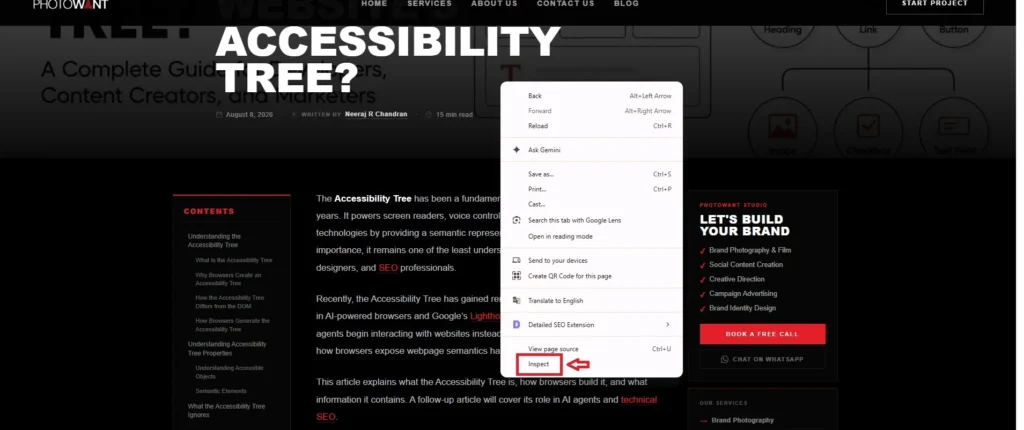
Chrome DevTools provides several ways to inspect accessibility information. The simplest approach is to open the webpage you want to test, right-click an element, and select Inspect.
Chrome then opens DevTools with the selected element highlighted in the Elements panel. From here, we can access its accessibility information and see how Chrome represents that element beyond its HTML structure.
This gives us a practical starting point for comparing the HTML element with the semantic information exposed by the browser.
Finding the Accessibility Panel
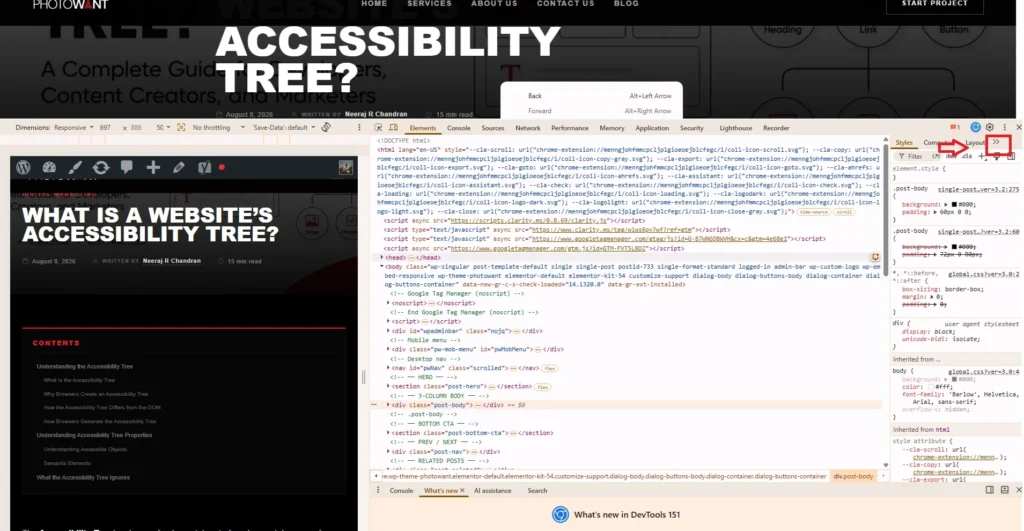
When you inspect an element in Chrome DevTools, the Styles panel may be visible on the right.
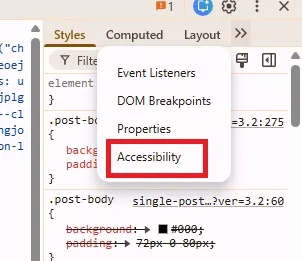
If you cannot see Accessibility, look at the panel tabs and click the >> arrow to reveal additional tabs. Select Accessibility from the list.
Chrome will then show the accessibility information for the selected element, including its role, accessible name, description, and state.
Viewing Accessibility Information
With the element selected in Chrome DevTools, open the Accessibility section in the Elements panel. Chrome displays the information it has computed for that element, including its accessible name, role, description, and state.
Instead of looking only at <button>, <a>, or <input> in the HTML, you can see how Chrome interprets that element for accessibility.
For example, a button containing the text “Book Flight” should expose a meaningful name and the Button role. If the expected name or role is missing, the Accessibility panel can help identify the underlying semantic issue.
Viewing the Full Accessibility Tree
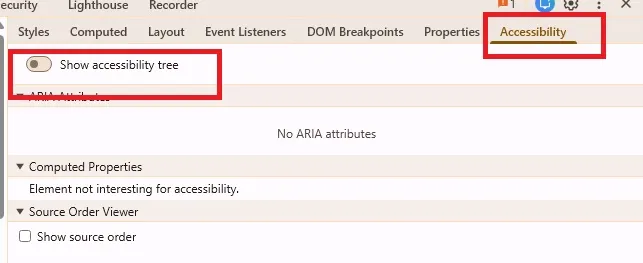
Chrome also provides a way to view the full Accessibility Tree instead of inspecting only one selected element. When available in the Accessibility tooling, enable the option to show the accessibility tree. Chrome then presents the page’s accessibility representation rather than only its DOM structure.
You can expand the nodes and select different elements to understand their position and computed properties. You can also compare the same element with its representation in the DOM.
This is useful when you want to understand how the structure of an entire page is exposed, rather than checking individual buttons, links, or form fields one at a time.
Reading the Accessibility Tree
Accessible Name
The accessible name identifies an element to assistive technologies. It answers what is this element called.
<button>Book Flight</button> should expose Book Flight as its accessible name.
Accessible Role
The accessible role tells assistive technologies what an element is and how users can interact with it.
<a href=”/services”>Our Services</a> should expose Link as the role and Our Services as its accessible name.
Accessible State
The accessible state describes the current condition of an element.
<button aria-expanded=”true”>Menu</button> should expose the expanded state when the menu is open. When the menu closes, that state should update accordingly.
Accessible Description
The accessible description provides additional information when the accessible name is not enough.
For example, a form field can use aria-describedby to provide instructions such as “Password must contain at least 8 characters.”
Ignored Nodes
Some elements are not exposed as meaningful nodes in the Accessibility Tree. Chrome may mark these elements as ignored when they have no accessibility relevance or have been intentionally hidden.
Check this carefully when debugging hidden content. Important information or interactive controls should not be accidentally removed from the accessibility representation.
Inspecting Common Website Elements
Inspecting Headings
Headings help establish the content hierarchy of a webpage. In Chrome’s Accessibility panel, inspect the heading’s role and accessible name.
<h2>Our Services</h2> should expose Heading as its role and Our Services as its accessible name.
This can reveal semantic problems that are not obvious from the visual design alone.
Inspecting Navigation and Landmarks
Landmarks describe major regions of a webpage. Inspect elements such as <nav>, <main>, <header>, and <footer> to check how Chrome exposes their roles.
<nav aria-label=”Primary navigation”> should expose a Navigation role with the accessible name Primary navigation.
This helps verify whether important page regions have clear semantic meaning.
Inspecting Links
Links should expose a clear accessible name that explains where the link leads or what action it performs.
<a href=”/services”>Our Services</a> should expose Link as the role and Our Services as its accessible name.
Avoid vague link text such as “Click here” when the destination is not clear from the accessible context.
Inspecting Buttons
Buttons should expose a clear accessible name and the correct Button role.
<button>Book a Flight</button> should expose Button as the role and Book a Flight as its accessible name.
For icon-only buttons, inspect the accessible name carefully. An icon may be obvious visually but meaningless to a machine if the button has no accessible label.
Inspecting Form Elements
Forms need clear names, roles, and relationships. Check each input in Chrome’s Accessibility panel to confirm that its intended label is exposed.
<label for=”email”>Email Address</label><input id=”email” type=”email”> should expose Email Address as its accessible name.
This is more reliable than using a placeholder as the only description of the field.
Inspecting Images
For informative images, verify that Chrome exposes a meaningful accessible name, usually derived from the alt attribute.
<img src=”flight.jpg” alt=”Passenger boarding a flight”> should expose a meaningful name rather than leaving its purpose unclear.
Decorative images can use an empty alt value so they do not add unnecessary information to the Accessibility Tree.
Inspecting Hidden Elements
Hidden elements can behave differently in the Accessibility Tree. Check whether Chrome marks an element as ignored or excludes it from the accessibility representation.
This can happen when content is hidden with CSS or when developers use attributes such as aria-hidden=”true”.
The key is to verify that important content and interactive controls are not accidentally hidden.
Inspecting ARIA Attributes
ARIA attributes can change how an element is exposed in the Accessibility Tree. Check whether they produce the intended role, name, state, or relationship.
<button aria-label=”Close menu”>×</button> should expose Button as the role and Close menu as its accessible name.
Use ARIA when necessary, but prefer native HTML when it already provides the required meaning.
Inspecting Dynamic States
Interactive elements can change state without loading a new page. Check properties such as expanded, collapsed, checked, selected, disabled, or focused when the element changes.
<button aria-expanded=”true”>Menu</button> should expose the appropriate state when the menu opens or closes.
This helps verify that dynamic interfaces communicate their current state correctly.
Comparing the DOM With the Accessibility Tree
The DOM shows how the webpage is structured in HTML. The Accessibility Tree shows how Chrome exposes that structure as accessible information.
For example, a <button> in the DOM can appear as a Button with an accessible name in the Accessibility Tree. A layout-only <div> may remain in the DOM but provide no meaningful node in the Accessibility Tree.
Comparing both views helps identify where the HTML structure and browser-exposed semantics differ.
Building a Practical Inspection Workflow
Chrome DevTools becomes more useful when you inspect the Accessibility Tree as part of a repeatable workflow.
Start with important elements such as headings, navigation, links, buttons, forms, and images. Check their accessible properties, compare them with the intended meaning, fix semantic gaps, and then inspect the element again.
A simple workflow is: Inspect → Understand → Fix → Recheck.
This helps ensure that the meaning presented through the browser’s accessibility layer matches the meaning intended in the HTML and interface.
Checking the Accessibility Tree After Fixes
After making an accessibility change, inspect the element again in Chrome DevTools. Check whether its name, role, state, and description now reflect the intended meaning.
For example, after adding a missing form label, return to the Accessibility panel and confirm that Chrome now exposes the correct accessible name.
The goal is simple: make the change, inspect the result, and verify what the browser exposes.
Common Issues Found During Inspection
Chrome’s Accessibility panel can reveal semantic problems that are easy to miss in the visual interface. Common issues include missing accessible names, incorrect roles, missing form labels, incorrect states, and important elements being ignored.
For example, a visually clear icon button may expose no accessible name, while a form field may appear correctly labelled but expose no useful name to assistive technologies.
These checks help identify gaps between what users see and what the browser exposes as meaning.
Accessibility Tree, GEO and Agentic Browsing
The Accessibility Tree offers another useful perspective for generative engine optimization (geo). It shows how browsers expose meaningful interface information beyond visual presentation and raw HTML.
This becomes relevant to Agentic Browsing, where AI agents need to understand buttons, links, forms, navigation, and their states to complete tasks.
The Accessibility Tree is not a direct GEO ranking signal, nor does it mean AI systems simply consume the tree. Instead, it provides a useful way to evaluate how clearly a website exposes its interface meaning to machines.
Conclusion
Chrome DevTools lets us inspect how the browser exposes webpage semantics through the Accessibility Tree.
By checking names, roles, states, descriptions, and relationships, we can find semantic gaps that HTML or visual inspection may miss.
The workflow is simple: Inspect → Understand → Fix → Recheck.
This makes the Accessibility Tree useful for accessibility testing and as a practical lens for GEO and Agentic Browsing.
