A fast website is no longer just a technical advantage. It is an important part of creating a good user experience. When a website loads slowly, responds poorly, or shifts unexpectedly while loading, visitors may leave before interacting with the page.
This is where Core Web Vitals come in. Core Web Vitals are a set of Google metrics designed to measure important aspects of real-world page experience, including loading performance, responsiveness, and visual stability.
What Are Core Web Vitals?
Core Web Vitals are a set of metrics Google created to measure the real-world experience of loading and using a webpage. Rather than looking only at how fast a page loads, they capture three distinct dimensions of experience: how quickly the main content appears, how responsive the page feels when someone interacts with it, and how visually stable the layout stays while it loads.
They were introduced as part of Google’s broader “page experience” initiative, which recognizes that a technically fast page isn’t always a good page if it’s frustrating to use for example, if buttons jump around right as a visitor tries to tap them.
Why Do Core Web Vitals Matter?
Three big reasons: user experience, business results, and search rankings.
Slow, jumpy pages push people away before they read your content or buy anything. Even small delays are known to increase bounce rates and hurt conversions. On top of that, Google factors page experience into how it ranks pages so performance problems can quietly hurt your visibility in search results too.
The Three Core Web Vitals
There are three metrics: LCP, INP, and CLS. (INP replaced an older metric called FID, shifting the focus from just the first click to responsiveness throughout the whole visit.)
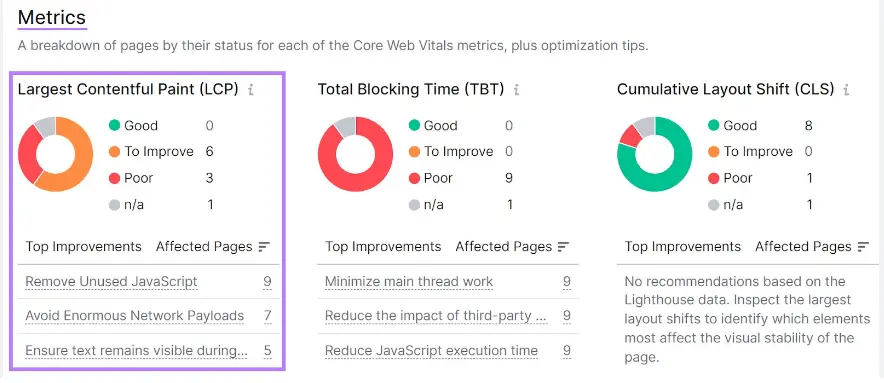
1. Largest Contentful Paint (LCP) — How fast does it load?
What it measures: How long it takes for the biggest visible element on the page usually a hero image, big headline, or video thumbnail — to actually show up. It tells you when the page feels loaded to a visitor.
Good score:
- Good: 2.5 seconds or less
- Needs work: 2.5–4.0 seconds
- Poor: over 4.0 seconds
What causes bad LCP: Slow servers, CSS/JavaScript that blocks rendering, huge unoptimized images, slow third-party resources, or content that loads late because of client-side rendering.
How to fix it: Compress and resize images, use modern formats, preload the key image, upgrade your hosting, remove render-blocking code, and use a CDN.
2. Interaction to Next Paint (INP) — How responsive is it?
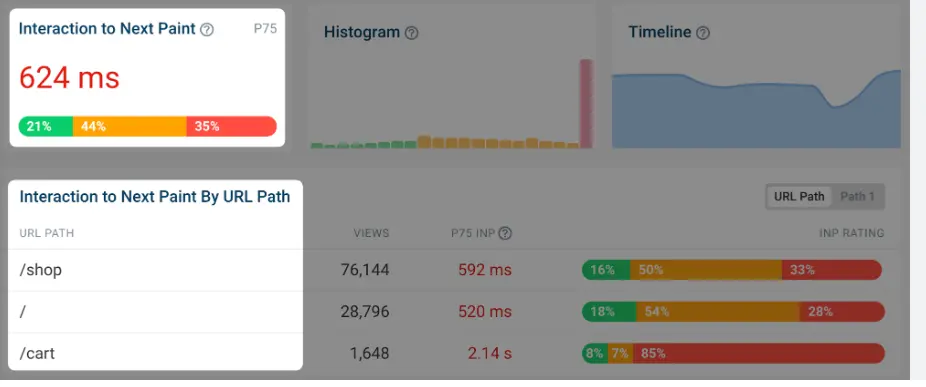
What it measures: How quickly the page responds to clicks, taps, and keystrokes not just the first one, but throughout the whole visit.
Good score:
- Good: 200ms or less
- Needs work: 200–500ms
- Poor: over 500ms
What causes bad INP: Heavy JavaScript, tasks that block the browser, too many event listeners, inefficient re-rendering (common in React-style sites), and bulky third-party scripts like ads, chat widgets, or analytics.
How to fix it: Break up long JavaScript tasks, delay non-essential scripts, cut down main-thread work, use web workers for heavy lifting, and audit third-party scripts to see what you actually need.
3. Cumulative Layout Shift (CLS) — How stable is it?
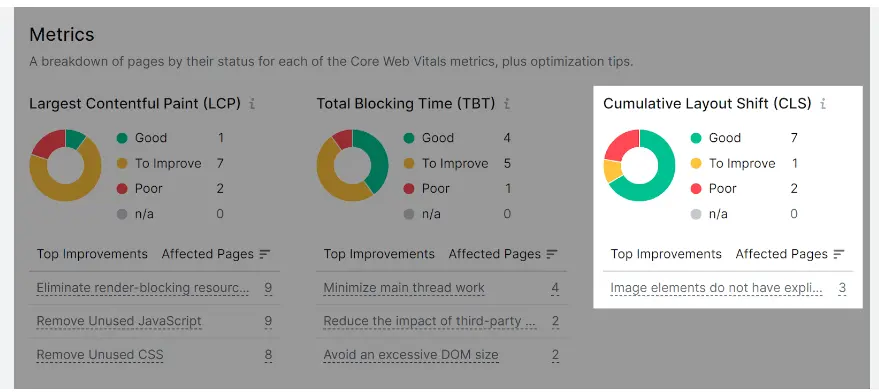
What it measures: How much content unexpectedly moves around while the page loads, based on how big the shift is and how far things moved.
Good score:
- Good: 0.1 or less
- Needs work: 0.1–0.25
- Poor: over 0.25
What causes layout shifts: Images or ads without set dimensions, fonts that swap in and reflow the text, pop-ups or banners that push content down, and animations that aren’t built the right way.
How to fix it: Always set width/height on images and embeds, reserve space for ads and dynamic content before they load, preload fonts (or use font-display: optional), and avoid dropping new content above what’s already on screen.
| Metric | Good | Needs Improvement | Poor |
| LCP | ≤ 2.5s | 2.5s – 4.0s | > 4.0s |
| INP | ≤ 200ms | 200ms – 500ms | > 500ms |
| CLS | ≤ 0.1 | 0.1 – 0.25 | > 0.25 |
How This Affects Real Users
Consider an online store where the product page loads, but the main product image appears several seconds later. The visitor may have to wait before deciding whether to purchase.
Similarly, if buttons take too long to respond or page elements suddenly move while someone is clicking, the experience becomes frustrating.
Improving Core Web Vitals can help create a website that feels:
- Faster
- More responsive
- More stable
- Easier to use
- More enjoyable on mobile devices
Common Mistakes to Avoid
- Oversized images or slow servers hurting LCP
- Heavy scripts and clunky code slowing down INP
- Missing image dimensions or late pop-ups causing CLS
- Only checking lab scores (like PageSpeed) instead of also looking at real-world field data
- Ignoring mobile : Google mostly evaluates the mobile version of your site, so desktop-only fixes aren’t enough
- Fixing one metric and forgetting the others : a page can have great LCP but still feel bad if INP or CLS is poor
- Treating this as a one-time fix : new content, plugins, and scripts can quietly make things worse over time, so keep monitoring
How to Find the Root Cause
- Start with real-world (field) data to spot which pages/metrics need attention
- Use PageSpeed Insights, Lighthouse, or Chrome DevTools to dig into why
- Check the Core Web Vitals report in Google Search Console
- Find the worst-performing pages
- Test those URLs directly in PageSpeed Insights
- Review the suggested fixes
- Use Chrome DevTools to pinpoint exact scripts or resources causing issues
- Make the fix, retest, and keep monitoring
Tools to Check Core Web Vitals
- Google Search Console : Shows real user data (field data) across your whole site over a rolling 28-day period. It’s the closest thing to Google’s own view of your site.
- Page Speed Insights : Combines real-world data with a fresh lab test, plus a detailed breakdown of what to fix.
- Chrome Dev Tools : Lets you record a page load and see exactly which scripts or resources are causing delays or shifts.
- Lighthouse : Can run from Dev Tools, the command line, or a CI pipeline for automated performance audits great for catching problems before they go live.
Practical Ways to Improve Core Web Vitals
- Optimize images : Compress them, use WebP/AVIF, size them correctly, and use responsive images so devices don’t download more than they need.
- Speed up your server : Better hosting, caching, and optimized database queries all help the page start loading faster.
- Cut unused JavaScript : Only send the code a page actually needs (code-splitting helps here).
- Minify CSS/JS : Strip out unnecessary characters to shrink file sizes.
- Remove render-blocking resources : Defer or load non-critical code asynchronously.
- Use browser caching : So returning visitors don’t re-download the same files.
- Use a CDN : Serves your content from servers closer to your visitors.
- Optimize fonts : Preload key fonts, limit font variations, and avoid layout shifts from font swapping.
- Reduce third-party scripts : Audit ads, chat tools, and analytics tags, and remove what isn’t essential.
- Prioritize mobile : Test on real mobile conditions and keep things lightweight.
Core Web Vitals on WordPress
WordPress is flexible, but that flexibility can hurt performance — themes, plugins, and unoptimized database calls all add up.
- Plugins: Every plugin adds its own code and sometimes database calls. Too many (or poorly built) plugins are a common cause of slow WordPress sites.
- Themes: Lightweight, cleanly coded themes usually beat feature-heavy ones that load things most pages don’t need.
- Fixes: Use a caching plugin, a lightweight theme, an image optimization plugin, a CDN, and keep your active plugin count low. A performance-focused host also helps.
Core Web Vitals on Mobile
Most web traffic today comes from mobile, and Google mainly evaluates the mobile version of your site.
Common problems: Heavy JavaScript relative to weaker processors, inconsistent networks, and layouts that shift on smaller screens.
Fixes: Test on real mobile conditions, keep the initial load lightweight, size images for smaller screens, and avoid pop-ups that cause shifts.
Core Web Vitals for E-Commerce
Product images are often large and numerous, which can hurt LCP if they’re not compressed and properly loaded.
Third-party scripts analytics, personalization, reviews, chat, ads pile up fast on e-commerce sites, making poor INP especially common.
Fixes: Prioritize loading the main product image first, lazy-load things like reviews below the fold, reserve space for dynamic elements like pricing or stock badges, and regularly clean out unnecessary marketing scripts.
Conclusion
Core Web Vitals help you understand how well your website performs from a real user’s perspective. Metrics such as Largest Contentful Paint (LCP), Interaction to Next Paint (INP), and Cumulative Layout Shift (CLS) show whether a page loads quickly, responds smoothly, and remains visually stable.
Improving these metrics can create a better experience for visitors and make your website more reliable across devices. Use tools such as Google Search Console and PageSpeed Insights to monitor performance, identify issues, and make improvements regularly.
Remember, website performance is not a one-time task. Keep monitoring your Core Web Vitals, fix performance issues as they appear, and focus on creating a fast, smooth, and user-friendly website.
